Scenarios & what-ifs
Ask what-if questions in plain English, browse and compare the answers, and keep them current as the model changes.
Scenarios is a model's what-if workbench. It opens in three columns: the scenario list on the left, the model and its KPIs in the middle, and the scenario editor on the right. Both side columns are resizable, and each collapses to a narrow rail with a single button — Scenarios or Editor — to give the middle column the width.
The scenario list
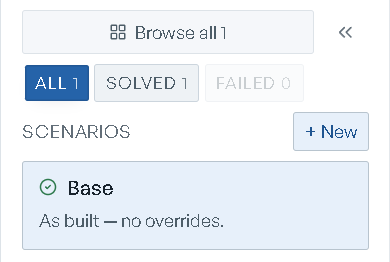
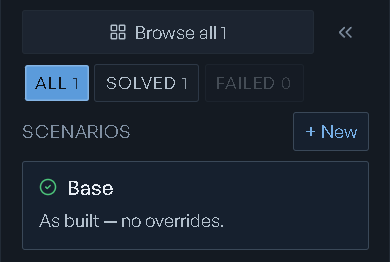
Three filter chips sit above the list — All, Solved, Failed — each carrying a live count. A chip with nothing behind it is disabled, so the counts tell you what is there before you click.
Each row shows a status mark (a spinner while it runs, a check when it solved, a warning triangle when it failed, a hollow circle before it has been run), the scenario's name, and the what-if prompt underneath, clamped to two lines. The objective figure per row is off by default; turn on Show objective function in Page settings to show it.
Hover a row for its actions:
- Rename scenario — edits the name in place. Enter or Save commits, Escape or Cancel backs out.
- Collect this scenario's inputs (captures what it assumed — no re-solve) — records the values the scenario ran on. It appears only on scenarios that have no captured inputs yet, and it does not re-solve.
- Regenerate against the updated model (re-solve + Δ vs the prior revision) — on stale rows only. See When the model changes.
- Delete scenario — confirms with Delete scenario "
{name}"? and "This cannot be undone." Base has no delete action.
+ New creates an empty scenario: it asks Name this scenario, defaults the name to What-if, and Create adds the row. Nothing is solved — you write the what-if in the editor and run it yourself.
Base
The first row is Base — "As built — no overrides." It carries the model's original solve. Once Base has a result its name and prompt are read-only: "The Base scenario is read-only — it captures the original solve." What you can still do from Base is re-run it — Re-solve Base against the current model solves it again against the model as it stands now, leaving the prompt and overrides untouched.
A Base that has never been solved — an imported model, for instance — is runnable, and the button reads Solve as-imported.
Writing a what-if
Select a scenario and the Scenario editor on the right gives you two fields:
- Name
- What if…, whose placeholder carries the example: "Describe the change in plain English — e.g. 'What if flour costs jump 30% and we lose 2 hours of oven time?' RIA will figure out what to adjust."
Both save when you click away, and keystrokes in What if… are held locally per scenario, so a refresh does not eat a half-written draft. Run scenario solves it and reads Solving… while it runs. One solve runs at a time; a second Run scenario while one is in flight waits its turn.
Where a scenario has overrides attached — inferred by RIA from your sentence, or picked up from
edits you made in the data grid — the editor shows the count as {n} data override(s),
"attached from data edits or the agent."
Two things the editor tells you rather than leaving you guessing:
- If a solve stops reporting for a minute, Cancel and re-run appears under "Still solving after a while."
- If the scenario needs values from you before it can solve, the pane says "This scenario needs data from you before it can solve" and offers Fill in inputs.
A what-if has to be a change, not a question. Ask "what is binding at Base?" as a scenario and the platform declines it: "This reads as a question for RIA rather than a what-if. Ask it in chat, or add an override to make it a scenario." Ask that one in the console instead.
Starter what-ifs
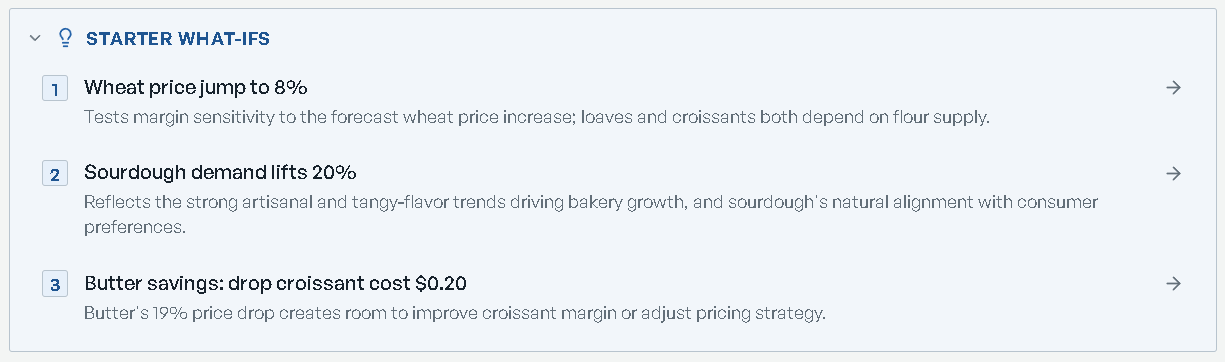
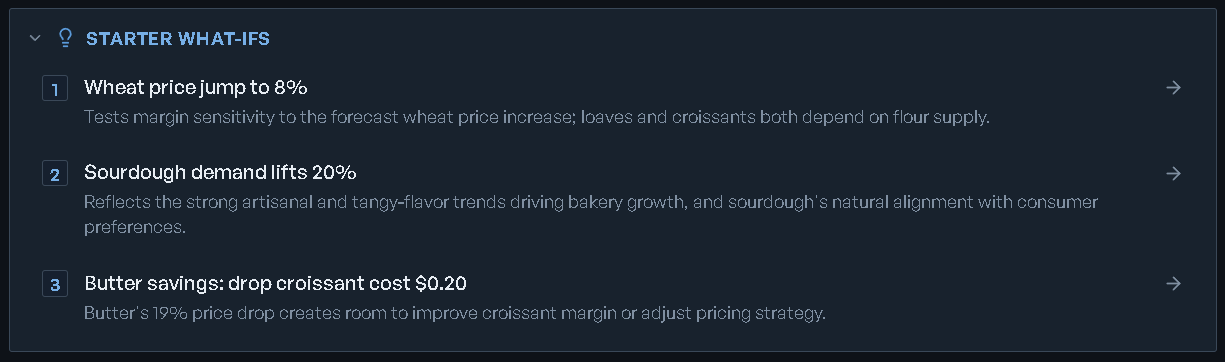
RIA proposes Starter what-ifs for your model — questions worth asking, each with the reasoning behind it. The card is open on Base and collapsed on every other scenario, and it remembers which way you left it per scenario.
Clicking a starter what-if does not run it. It stages the text into the editor, whose header flips to New what-if:
Review or edit this what-if, then run it. Nothing is created or solved until you click Run scenario.
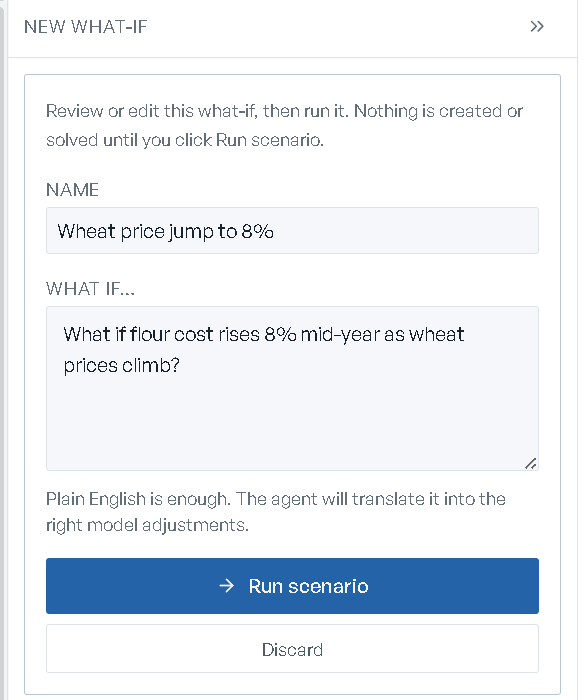
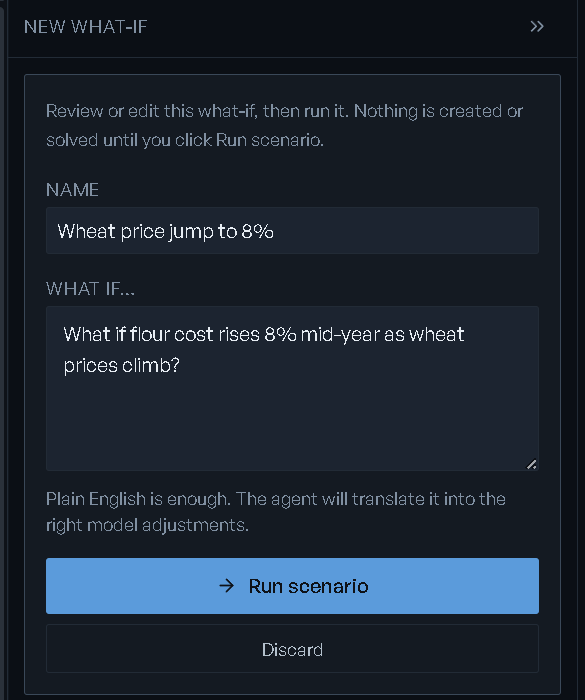
Edit the Name and What if… text, then Run scenario creates the scenario and solves it in one move. Discard throws the draft away and creates nothing. The staging step exists because every run costs a real solve.
Outside context — a collapsed line reading "— {n} market factor(s) RIA is watching" — works
the same way: clicking a factor stages a what-if built from it, and you still press Run
scenario. It appears once the model has at least one solved what-if.
Asking in chat
On the Scenarios screen the console's hint reads "Each message becomes a new what-if scenario",
and its send button is Create scenario — "Create a scenario from this prompt (Enter)". In the
New Model wizard, once your build finishes, the hint reads
"Messages go to {model} as a what-if": a message there becomes a what-if on the model you just
built rather than starting another build.
When RIA proposes a what-if itself, it arrives as a card naming the scenario, its rationale, and What changes — the concrete adjustments it would make. Run it starts the solve, Discard (or the X in the card's corner) drops it. The card carries the standing note that scenarios run one at a time, and it deliberately shows no before/after: producing one would mean spending the solve the approval is there to gate. When RIA has several proposals waiting, the console shows them one at a time — see RIA Console.
Browse all
Browse all {n} swaps the three columns for the full index — "Browse, search, group, and
compare all scenarios". Back to focus returns.
- Search scenarios matches name, prompt, and the levers behind each scenario; multiple words all have to match.
- Sort scenarios by — Objective, Last updated, Created, Name, Status.
- Group scenarios by — No grouping, By lever, By status.
- Row density — Compact, Cozy, Comfortable.
- Smart lists — All, Pinned, Top performers (the ten best by objective), Recent (the last fifteen), Stale, Infeasible, Solved, Failed. Empty lists are disabled.
Your sort, grouping and density choices persist. When filters hide everything, the index says so: "No scenarios match your filters."
Each row carries a lever chip naming what the scenario moves — price, capacity, demand, supply, other, or prompt when the lever was inferred from the sentence rather than from structured overrides — plus the objective with a delta bar against Base.
The delta is withheld — the value still shows — whenever the row cannot honestly be differenced against the current Base: a stale solve, a failed solve, or Base itself. A model that minimizes cost reads as a positive cost figure throughout, and "down" means cheaper.
Tick rows and a bulk bar appears, reading {n} selected and, where filters are hiding some of
your selection, "· {n} hidden by filters". It offers Compare, Pin, Regenerate,
Duplicate and Delete. Regenerate acts on the stale ones only. Delete skips Base and
confirms first.
Comparing
Select at least two scenarios and Compare opens them side by side in a workspace — the objective ladder, KPI deltas, and the financials comparison. Below two selections the button says what it needs: Select 2–5 to compare. Five is the ceiling. See Workspaces for what you can do with the board once it opens.
When the model changes
Edit the model's structure — re-author it, or change a cap or a floor — and every result solved
against the old structure is flagged stale · solved rev {n}, with an amber edge on the row and
a ▲ / ▼ {amount} vs rev {n} chip once it has been re-solved.
A banner above the list heads this with {n} scenario(s) solved against an earlier model
revision, and explains: "The model structure changed (now rev {n}) — a re-author or an edit.
These results came from the earlier structure; regenerate to re-solve against the current model;
each keeps its prior result so you can see the Δ."
Where an override now points at something the change removed, the banner says which scenarios may
break and names the dangling overrides. Regenerate all ({n}) re-solves the whole stale set;
the per-row action re-solves one.
When the Base moves
If the model's headline number and its Base result disagree, eode says so on the model's
Overview rather than serving the stale figure. The banner
prints both numbers — "This model's headline number doesn't match its Base result: the summary
shows {registry}, the Base solve says {scenario}." — and the reason.
Where the stored Base result can settle it, Use the Base result does, reporting "Base updated
to {amount}." Where it cannot, the banner tells you to re-solve the Base.
What about my scenarios? plans the knock-on before anything runs, read-only:
- how many can be replayed against the current Base, and how many are already current;
- how many "need a re-run rather than a replay", by name;
- how many "can't be replayed — their overrides no longer apply to this model."
Replay {n} scenario(s) runs the replayable set, one scenario at a time. A single call replays
at most 25 scenarios, and the cap is always reported rather than hidden: anything left over
comes back as "{n} weren't reached this run — run it again to continue." Failures are named.
Taking a scenario further
Open in workspace — "Create an analysis workspace bound to {name}." — turns a solved
scenario into an analysis canvas. It needs a result first; unsolved, the button says so. On a
scenario with no feasible answer the same slot becomes Diagnose, which opens a board built
around the collision instead. Both are covered in
Reading results.
Verifying
Verify opens the evidence record for the selected scenario. The button carries a status dot summarizing what the record says — that the answer was verified against the current model, that it was solved against an older model version, that a rule is failing, or that the result has an unexplained residual — and its tooltip spells the reason out. Unsolved, it reads "Solve this scenario first — Verify needs a result." See Reading results for what is inside.
Importing a workbook's other scenarios
For a model built from a spreadsheet, Import more scenarios from this workbook lists the scenarios the workbook holds beyond the one you imported as Base. Tick the ones you want and Import selected as what-ifs runs and attaches each as a scenario of its own.
Running a workflow from a scenario
The Workflows for {model} card lists the model's templates with a {n} templates counter,
each marked Published or Draft. Run with {scenario} starts a
workflow run with that scenario's results feeding the run's
widgets; unsolved, the button explains that the run needs result data. See all {n} workflows →
opens the full list.