Model Library
Every model you can see: four tabs, smart lists, row-level governance, and promotion to your organization.
The Model Library is "every model authored or imported. Rename, duplicate, delete, or open — or start a new one from a written brief or a file." New model starts a fresh one; see Building models.
The four tabs


| Tab | What it lists |
|---|---|
| Personal | models in your own library |
| Organizational | models promoted to your organization |
| All | every model you can see |
| Data connections | the live-data surface: Available sources and Models with connected data |
Each tab carries a count, computed over every model you can see — so the numbers don't shrink as
you filter. If the model list failed to load, the counts read — rather than 0.
Data connections changes the subject, so the search box, the sort, Mine and the smart lists don't apply there and aren't drawn. The tab lists the connectors this deployment serves — each with its description and how many saved connections it has — plus New connection, and underneath, every model drawing on connected data with its import template, validation-rule count and sync state. See Data integration.
Narrowing the list
On the three model tabs:
- Search —
Search name, description, tag, owner…. Every word you type has to match something: the name, the description, a tag, the category, or the owner. So "price bakery" finds "Bakery price hike". - Sort — Recently updated, Newest, Name (A-Z), Base objective, or Most scenarios.
- Mine — only models you own.
- Grouped — one list per category instead of one flat list. The toggle appears only once the library has been sorted into categories.
A {n} hidden by filters line counts what the current filters took away. Your sort, Mine,
Grouped and your pins are remembered between visits; the search box and the selected smart
list are not.
Switching tab clears the search, Mine and the smart list, and keeps the sort and Grouped.
Smart lists
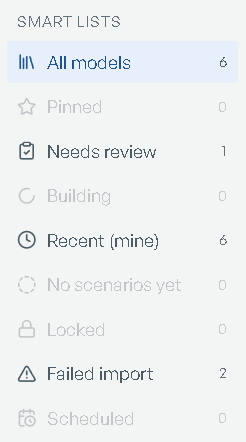
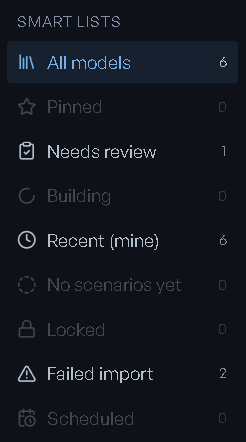
Smart lists down the side cut the library by state: All models, Pinned, Needs review (anything waiting on you), Building, Recent (the twelve most recently updated), No scenarios yet, Locked, Failed import, and Scheduled (models with a sync schedule).
Each carries a count, scoped to the tab you're on and to Mine but not to the search box. An
empty list disables itself — except All models and the list you're currently in, so you are
never left inside a list whose only explanation is unclickable. With Mine on, Recent
relabels itself Recent (mine).
Pinning is yours alone: pinned rows float to the top of whatever sort you chose, and they are what fills Pinned.
Categories
With Grouped on, models bucket into category sections — each headed by the category, a
model count, and ▸ show / ▾ hide. Sections appear in the order your sort puts their
best-ranked model, so sorting by Base objective reorders the sections too. A model with no
category joins Uncategorized, and each row gains a line saying why it landed where it did.
When the list is empty
The library never shows a bare empty page — it names the cause. A failed load says
"This is a load failure, not an empty library. Nothing has been lost." with Try again.
Otherwise the message points at whichever filter emptied the list: a smart list
(Nothing in "…"), the search, Mine, or a genuinely empty tab — "No organizational models
yet. Promote one of your personal models to share it with the org."
Reading a row


Chips in front of the name carry the model's state and where it came from:
- Tier — Personal ("only you can see this") or Organizational ("Visible to your organization").
- Locked by you / Locked, with the reason in the tooltip.
- Progress — Importing, Import failed, Draft ("Named on the authoring walk; open it to continue describing"), Pick scenario, Pending review, Structure review ("The structure is authored and waiting for you to accept it — accepting builds and solves the model").
- Provenance — From Prompt for a model built through chat, Imported or From the connector it was built from, and Mixed sources when more than one source fed it. A model brought in from an existing model file names the file it came from in the chip's tooltip.
- Schedule — how often it syncs and when the next run is due, or Sync off, and Last sync failed when the last run didn't complete.
Under the name: the Base objective, the scenario, KPI and factor counts, Updated with the
date, and By you or the owner's name. Click the name to open the model, or the pencil
beside it to rename in place with Save / Cancel.
Row actions
Each icon's tooltip is its name. Hover for it; the order is fixed.
| Action | What it does |
|---|---|
| Pin to top / Unpin from top | floats this model to the top of your list |
| Version history | the revision snapshots, with a diff and a revert per revision |
| Audit log | who did what, when |
| Sync now | "rebuild from the connected sources" — only on a model with a schedule, and not while it's locked or importing |
| Pause scheduled sync / Resume scheduled sync | stops or restarts the schedule without losing it |
| Permissions | the recorded permission map |
| Lock model / Unlock model | "prevents structural changes until unlocked", with an optional reason others will see. An admin can Force-release a lock someone else holds |
| Promote to Organizational / Demote to Personal | share the model with your organization, or take it back. Unlock the model first |
| Duplicate | asks you to Name the copy — it suggests the original name plus copy — then opens the copy |
| Delete | names the model in the confirm, and warns "Scenarios will be removed too." |
Then the row's buttons:
- Accept structure — only on a model waiting for it: "Accept the authored structure — this builds and solves the model."
- Open model — "Open this model — Home, scenarios, workspaces." While an import is still running it reads Extracting…. A model with more than one scenario in its source file opens the scenario picker here instead of navigating, so you choose the Base first.
To change the model itself, open it: editing starts at step 1 of its model home. See Changing a model.
If an action fails, the row says which one failed and what the reason was, rather than reverting without explanation.
Permissions
Permissions opens the model's permission map: Owners, Contributors, Viewers, Promoters, and AI agents, each listing who holds the role. The view is read-only — "it mirrors the recorded permission map for review" — and the footer says so: "Read-only — editing is not available yet." Locking and promoting are done from the row actions above.
Personal vs Organizational
Models start Personal. Promote to Organizational shares one with every member of your organization, and it's a deliberate act.
The dialog runs a checklist before it will let you: Base model solved cleanly, Model is not locked, At least one KPI defined, AI agents picked (warn), and You have the right to promote. RIA drafts the Description and Primary use case your teammates will read — "RIA-drafted — edit before promoting", with Re-draft to pull them again from the current model. Reason (optional) takes "a short justification for the audit trail", and the footer states what is recorded: "Audit captures the promote + reason." Confirm with Promote.
Soft findings don't block it — "Soft warnings will not block promotion, but other users may ask about them." A certification shortfall is stated with its remedies, and publishing past it is a separate, recorded choice: Publish anyway, and record that I acknowledged it.
Promoting is role-gated — Promoters and Org Admins — and reversible with Demote to Personal.
Promotion and demotion are recorded on the model's audit log, not on the timeline of what the model is. See Changing a model.