Home & navigation
The Home command center, the left rail, the header, the command palette, and Page settings.
Every screen sits in the same frame: the header across the top, the left rail down one side, the RIA Console down the other. Home is what you land on.
Home
Home answers one question — what needs you this week. The greeting is set by your persona:
| Persona | Greeting |
|---|---|
| Modeler | "What's on the bench today?" |
| Analyst | "Welcome back — here's your week." |
| Operator | "Today's plan." |
| Executive | "Today's decisions are queued up." |
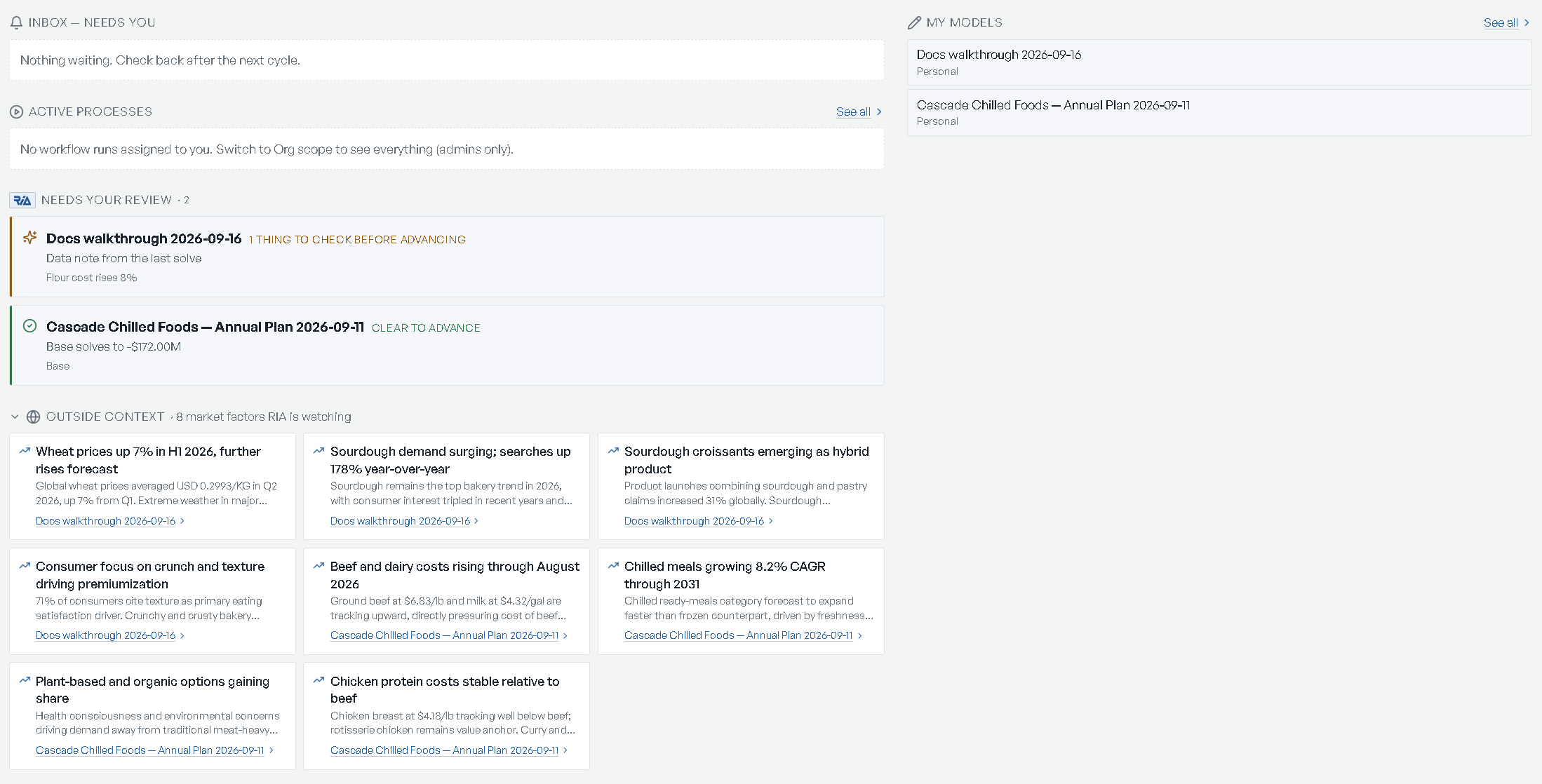
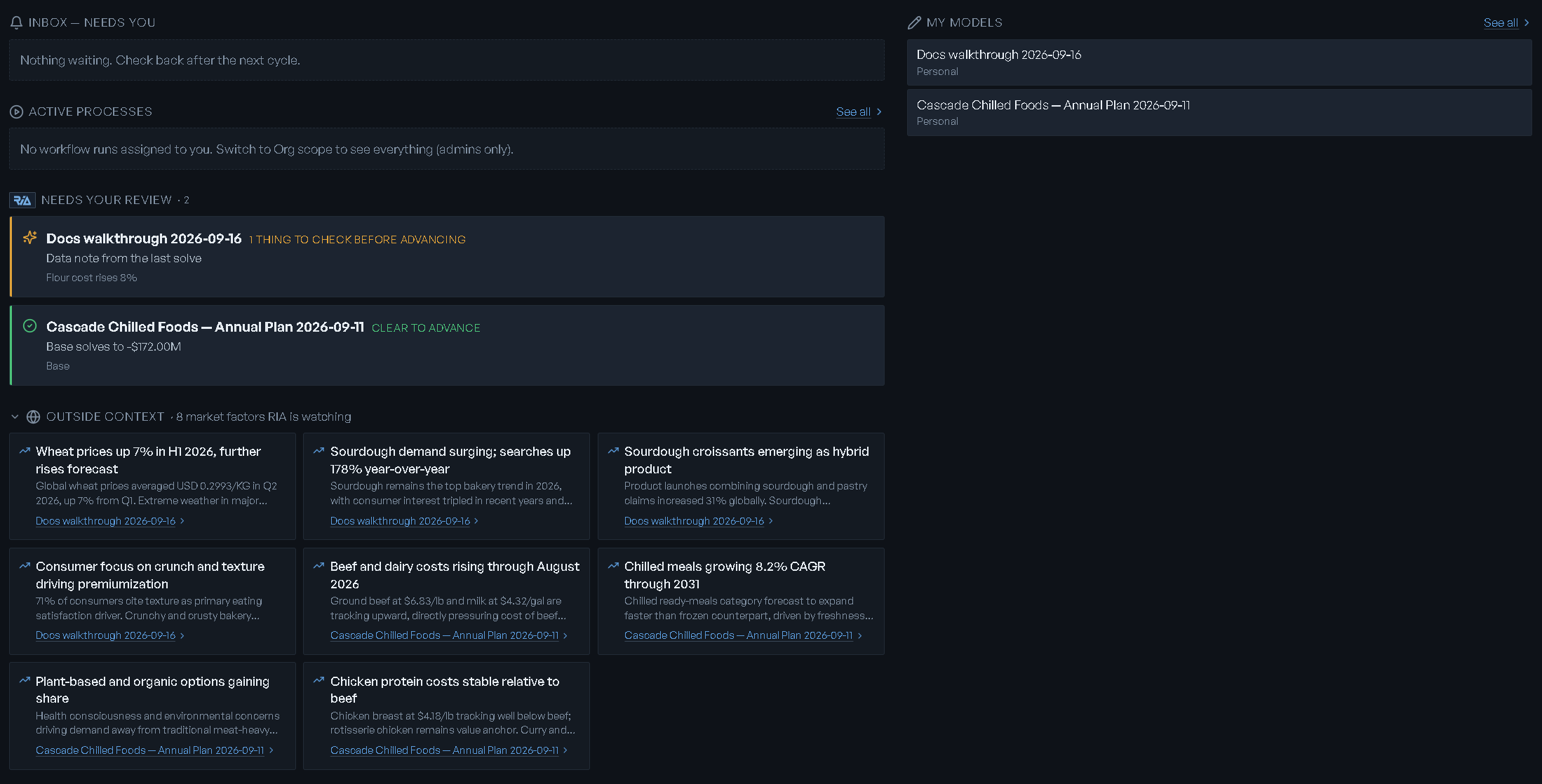
The sections
| Section | What it lists | When it's empty |
|---|---|---|
| Inbox — needs you | Approvals waiting on you and requests raised by RIA's background agents | "Nothing waiting. Check back after the next cycle." |
| Models awaiting you | Models stalled on something only you can do. The whole section hides when there is nothing | — |
| Active processes | Workflow runs assigned to you. See all opens Workflows | "No workflow runs assigned to you. Switch to Org scope to see everything (admins only)." |
| Needs your review | RIA's read on recent scenario results — the verdict, the top finding, the scenario. Opens that model's Overview | "Nothing to review yet — run a scenario on a model and RIA will weigh in here." |
| Outside context | Market factors RIA is watching, with the count in the heading. Collapsed until you open it | "No external news factors gathered yet — run the news refresh on a model to populate." |
| My models / My workflows | Two compact lists on the right, each with See all | — |
An approval card names the workflow, the stage and the model, and carries one button: Review & approve. An agent request carries three: Approve, Snooze 24h, Dismiss.
A row under Models awaiting you says what is wrong and what to do about it:
| The model is | The row says | The button |
|---|---|---|
| waiting on design confirmation | Design awaiting your confirmation | Review & confirm |
| waiting on mapping approval | Mapping awaiting your approval | Review the mapping |
| built but unsolved | Built - waiting for your numbers | Load data & solve |
| holding imported data | Imported data needs review | Open reconciliation |
| holding several importable scenarios | Choose which scenario to import | Open picker |
| short of answers | A few questions to sharpen the model | Answer or build |
| failed | Build failed — needs your attention | Open authoring |
| still importing | Import in progress | Watch progress |
Scope
Org admins get a Scope control at the top of Home — Me or Org. Org widens every section to the whole organization. Your choice is remembered for next time. Everyone else sees their own week only.
When a run is in flight
With a workflow run assigned to you, the top of Home becomes that run: a line reading
Active cycle: with the workflow and model, a Resume cycle button, a Stage <n> of
<total> tracker with the gate — needs sign-off or manual advance — and a
Waiting on approval pill while an approver holds it.
Below that, On the table puts the run's state in three chips: the leading scenario with its objective and its delta against Base, one chip per scenario that needs a fix with a Diagnose link that opens a focused workspace on it, and the top market factor.
With nothing in flight you get one call to action instead — Author a model, or Open a model to plan / View latest results for a persona that does not author.
Operators and executives also get a model grid above everything else — Plans to run ("Open a model to set inputs and run a what-if.") or Models to review ("Open a model to view its latest results."), each card showing the model's tier and Base objective.
The left rail


Two groups, separated by a divider, in this order:
| Item | Opens |
|---|---|
| Home | Home |
| New Model | The five-step build |
| Model Library | Every model you authored or imported |
| Datasets | Everything you have imported |
| Workflows | Workflows and their runs |
| Overview | The open model's home page |
| Scenarios | The open model's what-ifs |
| Workspaces | Analysis canvases |
Then, pinned to the foot of the rail: Review Queue, Theme and Page settings.
Where the deployment includes the map tools, a third group, Tools, sits between the two and holds Site Planner and, where it is also enabled, Route Optimizer. Both are enabled per deployment; without them the rail reads as above.
The three model-scoped items — Overview, Scenarios, Workspaces — are always clickable. With no model open their icons dim, and clicking one opens the header's model menu with the note "That view needs a model open"; pick a model and you land on the screen you clicked. Overview also wears a dot while a model's design is still waiting for your review.
Theme is a one-click flip between dark and light — its tooltip reads Switch to light mode or Switch to dark mode. The control at the very top of the rail collapses it to icons (Collapse menu / Expand menu); every icon keeps its label as a tooltip.
The header
- Model switcher — the ribbon beside the logo reads the open model's name, or Select model. Its menu holds New model…, one row per model with that model's Baseline objective, and Browse all models. With nothing to list it says "No models yet: author one first."; if the list could not be fetched, "Could not load your models." with Try again.
- Breadcrumb — the name of the screen you are on, which doubles as the page heading. On Workspaces and Scenarios a second crumb names the open workspace or scenario, and the first crumb goes back to the list.
- Profile chip — your initials, your name, and a line reading your organization (or your role) and your persona. It opens the profile menu — see Accounts & access.
Command palette
Cmd+K (Ctrl+K on Windows) opens it, Escape closes it, ↑↓ move and ↵ selects. The placeholder is "Search models, screens, or actions…"; with nothing typed you get the first twelve commands, and no match reads "No matches. Try a model name, a tag, or a screen."
| Command | Hint |
|---|---|
| Go to Home | Dashboard |
| Go to Model Library | Browse all models |
| New model… | Describe your business, or import a file |
| Go to Workspaces | Saved analysis canvases |
| Go to Scenarios | What-ifs on the open model |
| Go to Workflows | Recipes and their runs |
| Go to Site Planner | Facility location on the map — listed only where Site Planner is enabled |
| Go to Organization | Members, roles, join requests |
Go to Scenarios is disabled with no model open, and reads Open a model first. Under the go-commands the palette lists your models — each row's hint is Personal · open model home or Organizational · open model home. To edit a model, open it this way and use step 1 of its model home.
Page settings
The gear at the foot of the rail opens Page settings, a modal that closes on Escape.
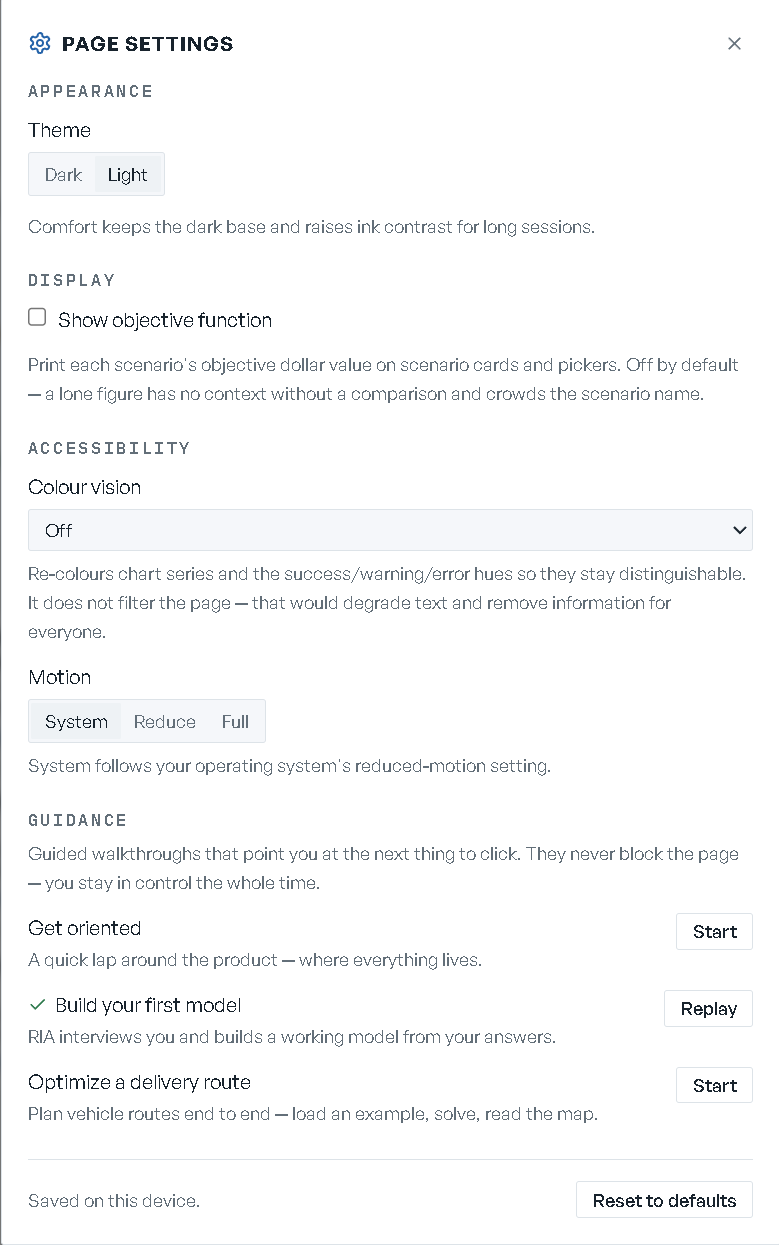
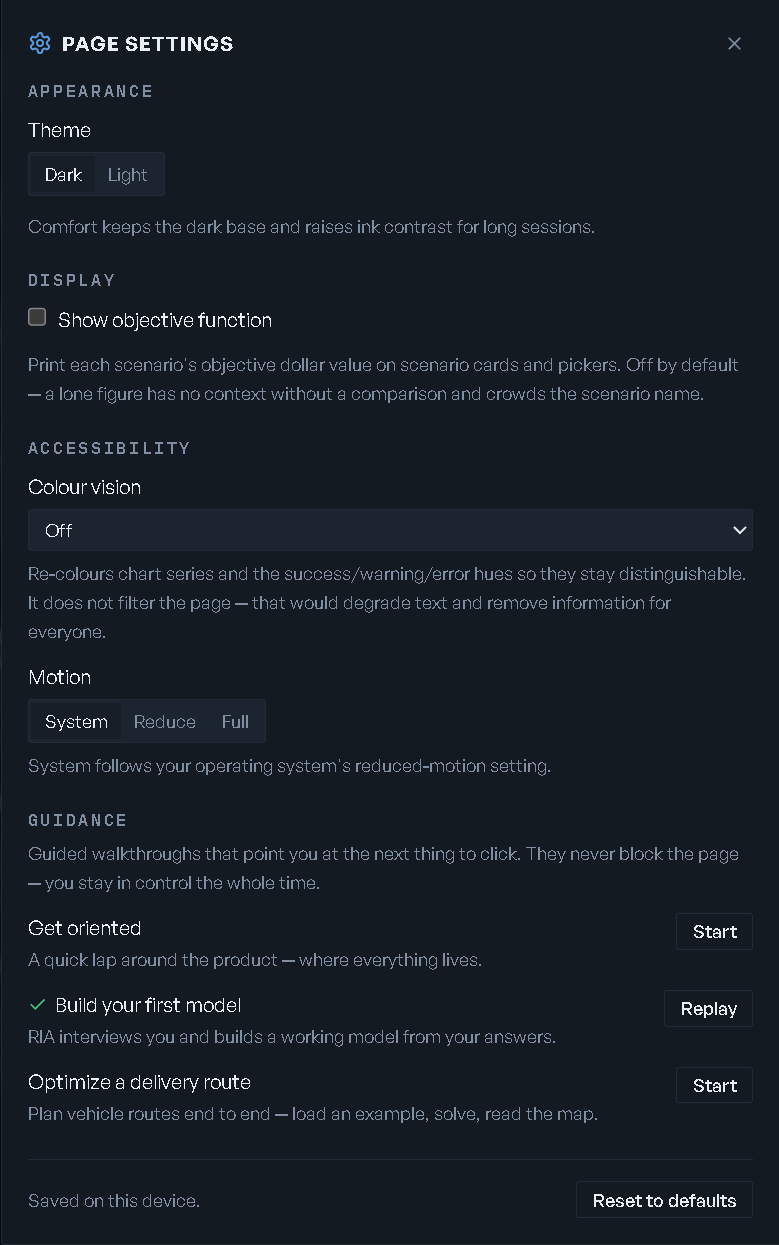
| Group | Control | Options |
|---|---|---|
| Appearance | Theme | Dark or Light. With no choice saved, the app follows your operating system |
| Display | Show objective function | Off by default. On, each scenario's objective value prints on scenario cards and pickers |
| Accessibility | Colour vision | Off, Deuteranopia (green-weak), Protanopia (red-weak), Tritanopia (blue-weak) |
| Accessibility | Motion | System, Reduce, Full |
| Guidance | One row per guided walkthrough | Start, Stop while it runs, Replay once you finish it |
Colour vision "re-colours chart series and the success/warning/error hues so they stay distinguishable" — and stops there: "It does not filter the page — that would degrade text and remove information for everyone." Motion's System follows your operating system's reduced-motion setting.
Three walkthroughs ship, under "Guided walkthroughs that point you at the next thing to click. They never block the page — you stay in control the whole time."
| Walkthrough | What it covers |
|---|---|
| Get oriented | "A quick lap around the product — where everything lives." |
| Build your first model | "RIA interviews you and builds a working model from your answers." |
| Optimize a delivery route | "Plan vehicle routes end to end — load an example, solve, read the map." |
Everything in the panel is "Saved on this device.", and Reset to defaults in the footer puts all of it back.
What your persona changes
Your persona changes the Home greeting, whether Home leads with a model grid, whether authoring affordances are offered, the RIA Console's opening line and suggestions, and where you land on your first sign-in.
It does not change what you can reach. Every rail item, every palette command and every screen is the same under all four personas. See Accounts & access for the list and for what does gate a surface.