Data integration
Connect a live source, pick what it feeds, and keep it in sync.
eode reads your numbers from a source you connect: a workbook you upload, a database, a warehouse, a SaaS account, or a public data feed. Connecting is the same four steps wherever you start — pick a source, authenticate, choose what it feeds, review — and it ends either as a dataset or as a model built straight from the source.
Two doors open the same window:
| Door | What it produces |
|---|---|
| Datasets → Import Data | A dataset, which you can then edit and bind to any model. |
| Model Library → Data connections → New connection | A model built from the source, with the option of a recurring sync. |
The source catalog
The first step is the catalog. It has a Search data sources… box and five sections, in this order: Popular, Databases, Data Warehouses, CRM & CMS, and External Data.
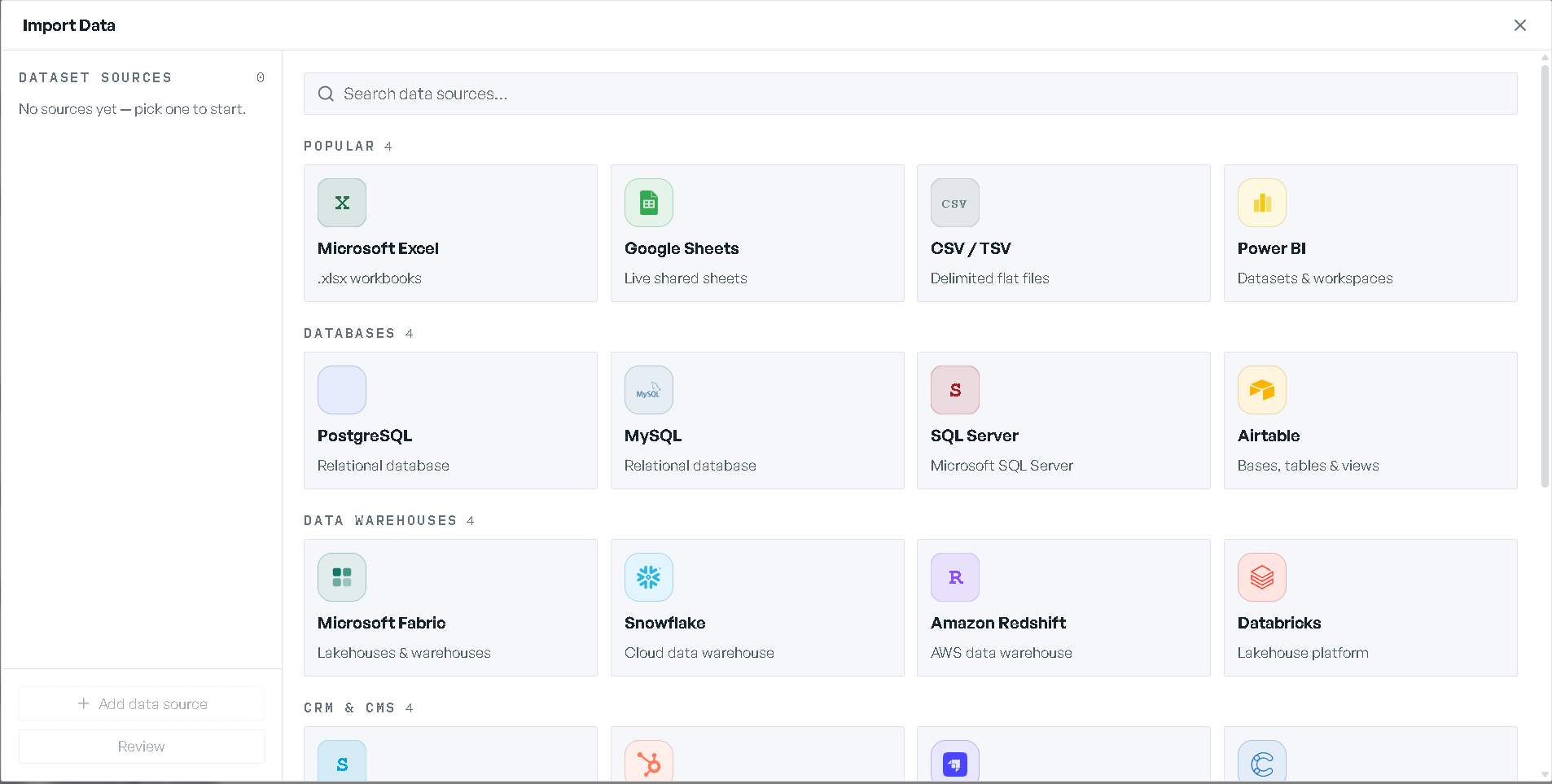
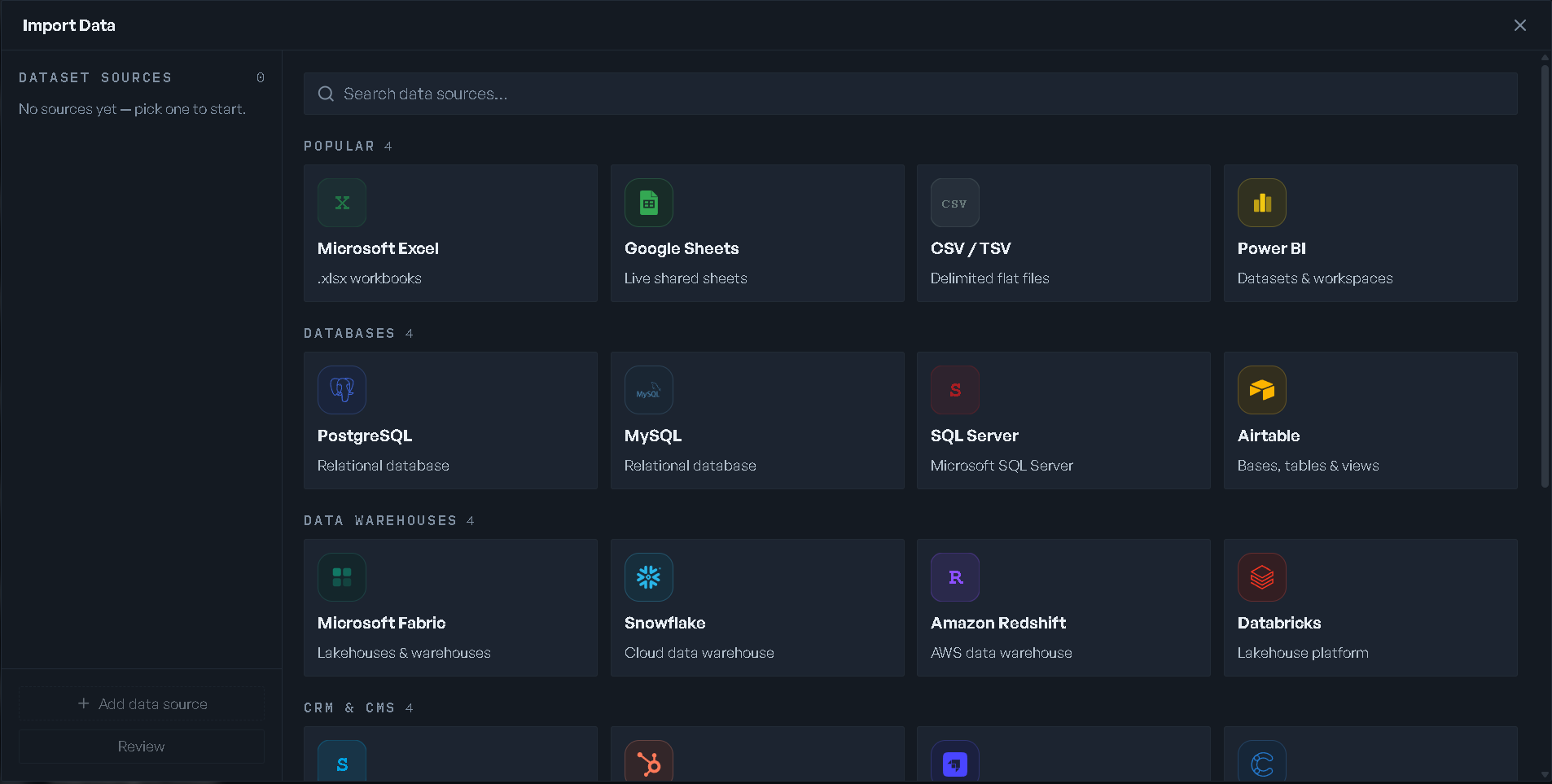
| Section | Sources | Recurring sync |
|---|---|---|
| Popular | Microsoft Excel, Google Sheets, CSV / TSV, Power BI | Google Sheets and Power BI only |
| Databases | PostgreSQL, MySQL, SQL Server, Airtable | Yes |
| Data Warehouses | Microsoft Fabric, Snowflake, Amazon Redshift, Databricks | Yes |
| CRM & CMS | Salesforce, HubSpot, Strapi, Contentful | Yes |
| External Data | USITC HTS, WITS, EIA, FRED Freight, Frankfurter FX, GDELT, Eurostat Labour Costs | No — one-time pulls |
The catalog is read from your deployment, so it lists what your deployment actually serves. A card may carry one of three badges: a green dot with a count of your saved connections, Premium on a premium external source, or Coming soon on a source that needs configuration before it can be used — that card is dimmed and cannot be clicked.
The sidebar on the left of the window keeps every source you have staged, with its resource count and a button to remove it. Add data source starts another one, so a single import can draw on several sources at once, and Review jumps to the last step.
Connecting
Saved connections
If you have connected this source before, your saved connections are listed first under Saved connections, each with a status dot, what it points at, and when it was last used. Healthy ones offer Use →; one whose credentials have lapsed offers Re-authenticate →. Below the list, Connect a different database — or Connect a different account, depending on the source — opens a fresh form.
"Saved connections are private to you. Credentials are encrypted and never shown again after saving."
An expired saved connection opens with a Credentials expired callout asking you to re-enter them.
Authenticating
How you authenticate depends on the source. Where a source supports more than one way, an Authentication method row of tabs lets you choose.
Credentials
A form of fields, with a Use SSL / TLS encryption checkbox where the method supports it. For PostgreSQL the two methods are Database credentials — Host, Port, Database, Username, Password — and Connection string.
Test connection runs a live check: a pass reads "Connection successful" with the round trip in milliseconds and the button becomes Test again; a failure names the error and asks you to check the values. The test must pass before you can continue — until it does, the step says "Test the connection to continue." Editing any field, flipping SSL, or switching method clears the result, so the test always reflects what is on screen.
Optionally tick Save this connection for reuse — skip authentication next time and give it a Connection name. This is offered for credential forms only: an uploaded file has nothing to reuse, and an authorization grant is kept for you automatically.
Authorize
Google Sheets, Power BI, Microsoft Fabric and Airtable open a provider window instead. The step says a window will open to sign in and grant read access, and that eode never sees your password. When it returns, the step reads Connected as your account and confirms that read-only access was granted and that you can revoke it from the provider at any time.
A source that requires you to register your own integration (Airtable) shows the callback URL to paste into it, with a Copy button.
Upload
Excel, CSV / TSV, and Power BI take a file: "Drop a file here, or click to browse." The zone
names the extensions it accepts and the size limit. Files are capped at 100 MB; Excel accepts
.xlsx, CSV / TSV accepts .csv and .tsv, and Power BI accepts .pbix. A wrong extension is
rejected with what it expected instead.
Nothing to enter
The External Data sources are provided and authenticated by eode itself: "This source is provided and authenticated by the app — nothing to enter." Where a feed takes arguments they appear under Optional parameters.
However you authenticate, the step states its own handling: "Credentials are encrypted at rest and only used for read access." Continue → moves on.
Choosing what it feeds
The third step lists everything the source holds, grouped, with a filter box and a running
N of M selected count. Everything is selected when you arrive, so deselect what you do not want.
Group headers select and clear a whole group at once. The footer states the rule — "Only selected
resources are pulled into the model." — and Add source stages the source and returns you to
the sidebar.
Review
Review summarizes every staged source and the resources you picked from each, and is where you set the schedule. Build model → builds a model from all of them at once; on the dataset door the button reads Import data → instead. The confirmation names what was created and offers Open model → or Open dataset →.
Building has no progress estimate, and the window says so rather than guessing: "Building the model from your data. There's no reliable estimate for how long this takes."
Build model → does not build on part of your data. If any sheet or table you picked held more rows than an import reads (see Limits), nothing is built, and the window's footer reads Build failed — followed by each sheet, how many rows it has, and how many were read: "A model built on part of your data would be wrong without saying so, so nothing was built." Cut each sheet down to the rows the decision needs — a period, a site, a product family — and build again.
Scheduled sync
Building a model from a connection offers two Import mode choices:
- One-time import — "Pull the data now and build the model once. No ongoing connection."
- Scheduled sync — "Keep the model in sync — re-pull data on a schedule you define."
Choosing Scheduled sync opens a Schedule with a Frequency of Every hour, Every
day, Every week, or Custom (cron); a day picker for weekly; a time for daily and weekly;
and a cron box for custom. A hint under it states the next run, in UTC. The defaults are daily at
02:00, Monday for weekly, and 0 2 * * * for cron.
One schedule covers every source staged in that import. Not every source can be re-pulled — Excel, CSV / TSV, and the External Data feeds are one-time only — so staging one of those narrows the choice, and the panel says which source constrained it.
Importing into the dataset library is always a one-time pull, so the dataset door does not offer a schedule.
To re-pull on demand rather than wait for the schedule, a connected model's Scenarios screen carries Sync now — "Re-pull data from this model's connected sources now." A snapshot taken from a synced model has no button of its own; the model it came from owns the schedule.
The Data connections tab
Model Library has a Data connections tab, with a count, beside Personal, Organizational, and All.
It has two sections:
- Available sources — "Connect a live source, pick the tables, and build a model from them — or refresh one you already have." Every connector your deployment serves is here, each showing how many saved connections you have on it, and one that needs configuration is marked Needs setup. New connection opens the import window. If a deployment serves none, the section says so and points out that models can still be built from a written brief or an imported file.
- Models with connected data — the models that are actually drawing on a connection, each with its source and whether a sync is on. Open model → opens it. Empty, it reads "No model is drawing on connected data yet."
Refreshing an Excel-backed model
A model built from a workbook re-reads an updated copy of that workbook rather than re-connecting.
Refresh from workbook — "Re-apply the saved data mapping to an updated workbook" — takes an
.xlsx and appears in two places:
- On the Scenarios screen of an Excel-backed model, beside the other header actions.
- On the model page's status card when a workbook failed validation, labelled Re-upload the workbook: "Your workbook didn't pass validation. Fix the flagged cells and re-upload — the checks re-run automatically."
If the new workbook is shaped differently from the old one, eode does not guess. It counts the structural changes and opens the reconciliation review so you can accept them one by one.
Limits
| What | Limit |
|---|---|
| An uploaded file (Excel, CSV / TSV, Power BI) | 100 MB |
| Rows read from an Excel sheet or a CSV / TSV file | 20,000 |
| Rows read from a table of any other source | 100,000 |
An import into a dataset keeps the rows that fit and marks the resource as truncated. Building a model from a connection refuses instead, as described under Review.
After the data is in
Binding a dataset onto a model that already exists, and reviewing that binding, is covered in Datasets. Changing numbers that are already in a model is covered in Editing data.